
AI Future Child Filter : How to Get the AI Child Filter on TikTok
The internet is obsessed with seeing what the future holds, and the latest trend sweeping TikTok is a playful and heartwarming glimpse into just that: the “AI Future Child Filter.” This fun filter uses the power of AI to generate a realistic image of your potential future kid, and it’s taking the social media world by storm.
If you’re ready to join the trend, this guide will walk you through what the filter is, how to create stunning and customized AI future child videos with a powerful app called YouCam AI Pro.
What is the “AI Future Child Filter” on TikTok?
Many AI filters on TikTok are actually templates created by other users on apps like CapCut. Here’s a general method for how to find and use these templates to create your own AI future child video:
Open TikTok and Search: In the TikTok search bar, type in “AI Future Child Filter,” “AI Baby Filter,” or a similar trending hashtag.
Find a Template: Look for videos with a “CapCut – Try this template” or “AI Template” button above the creator’s username. This indicates the video was made with a template you can use.
Tap the Button: Tap the button to be redirected to the CapCut app. If you don’t have CapCut, you’ll be prompted to download it first.
Use the Template: Follow the on-screen instructions, which usually involve uploading one or two photos of yourself and your partner. The template will automatically generate a video with the AI future child effect.
Share to TikTok: Once the video is ready, you can export and share it directly to your TikTok profile.
While this method is quick and easy, templates can be limited in customization. For more control over your video and the ability to generate a truly unique and high-quality image, we recommend using a dedicated AI app like YouCam AI Pro.
How to Do the AI Future Child Filter with YouCam AI Pro
YouCam AI Pro is a powerful AI art generator that goes beyond simple templates, allowing you to create a personalized AI future child image and then turn it into a dynamic video. This method gives you more creative freedom and a much higher-quality result.
Here’s your step-by-step guide to creating your AI future child video with YouCam AI Pro:
First, head to your app store (iOS or Android) and download the YouCam AI Pro app. It’s your all-in-one tool for creating stunning AI art and videos.
Step 2: Navigate to AI Replace
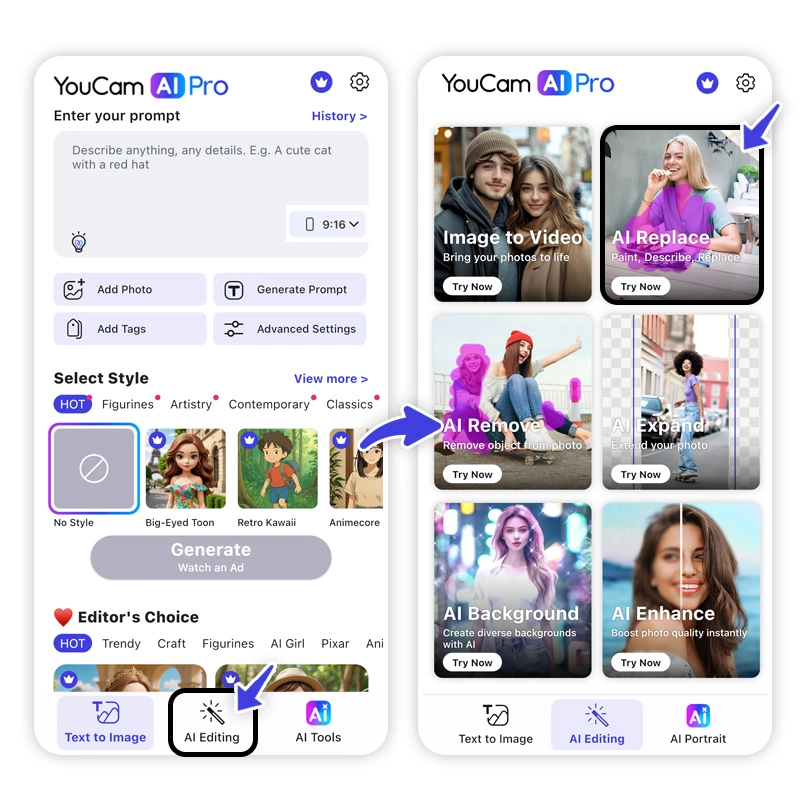
Open the app and find the “AI Replace” feature. This is a unique tool that allows you to swap out or add objects in your photo using a text prompt.
Step 3: Upload Photo to Add a Future Child
Choose a photo of yourself (and your partner, if you’d like) that you want to transform. A clear, front-facing portrait works best for the most realistic results.
Step 4: Color the Area that You Want to Add a Future Child
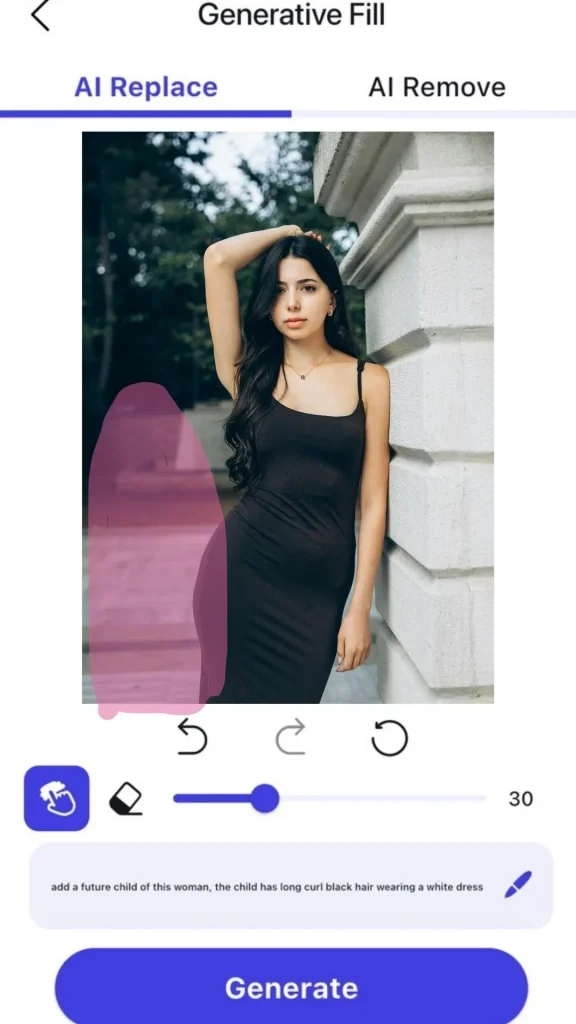
Using the brush tool in the AI Replace feature, color the area in your photo where you want the AI future child to appear. You could color a space next to you, a baby carrier on your chest, or even in your arms.
Step 5: Write a Prompt to Add a Future Child
This is where the magic happens. In the text prompt box, describe the image you want to generate. Be specific to get the best results.
Pro-tip prompt ideas:
- “a cute baby with brown eyes and curly hair”
- “a newborn baby with a small nose”
Step 6: Tap “Generate” to Get a AI Future Child Image
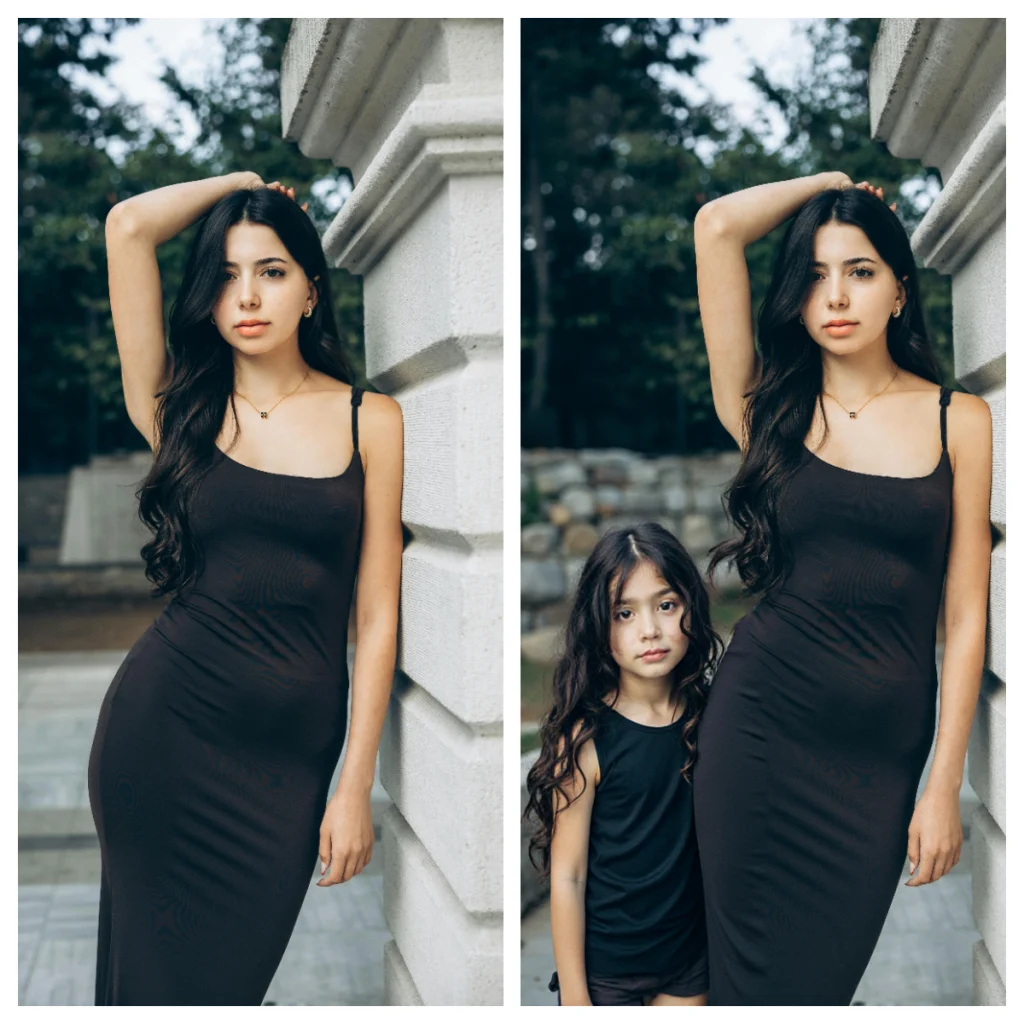
Once your prompt is ready, tap the “Generate” button. The AI will work its magic, creating a hyper-realistic image of your future child blended seamlessly into your photo.
Step 7. Head to Image to Video Feature
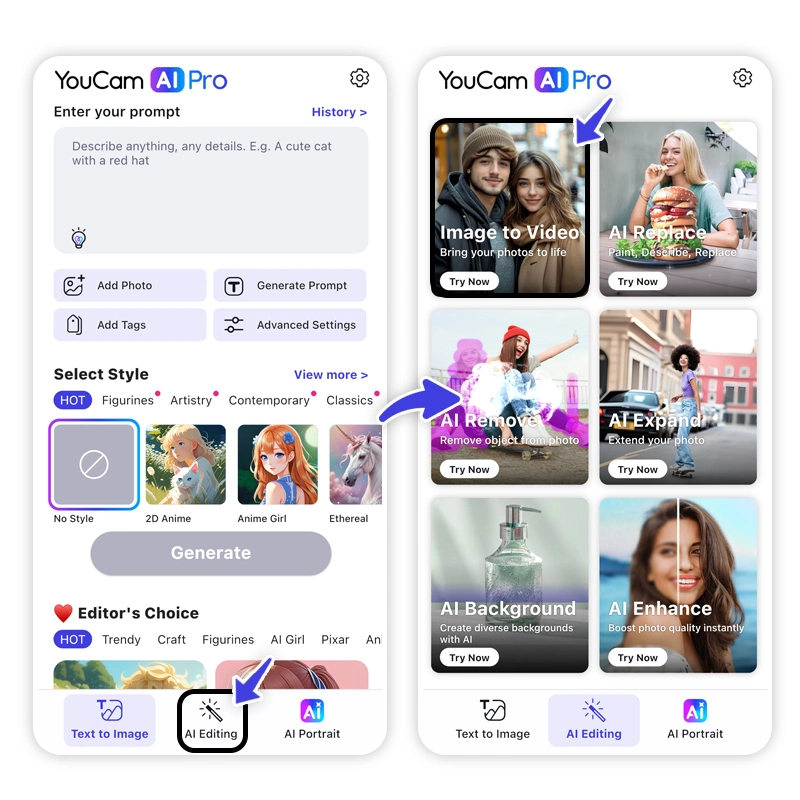
After you’ve saved your perfect AI future child photo, go back to the main menu and select the “Image to Video” feature. This will turn your still image into a short, animated clip.
Step 8. Upload Your AI Future Child Image
Select the AI future child image you just created to upload it to the Image to Video feature.
Step 9. Select Template or Write a Prompt
Now, you can try a existing video template or use a text prompt to animate your photo. Describe the action you want to see.
Prompt ideas for your video:
“my future child giggling”
“my future baby hugging me”
“a cute baby waving”
“a baby walking towards the camera”
Step 10. Generate Your AI Future Child Filter Video
Tap “Generate” and watch as YouCam AI Pro brings your photo to life! The final video will be a short, engaging clip that’s ready to be shared with the world. Save it to your phone and upload it directly to TikTok to get in on the trend.
Discover What Your Future Child Looks Like with AI
With YouCam AI Pro, you’re not just using a filter—you’re creating a one-of-a-kind, high-quality piece of AI art that’s uniquely yours.
Ready to see your future? Download YouCam AI Pro Now!
# AI Image Generation # Generative ai
About the Editors

AI Future Child Filter : How to Get the AI Child Filter on TikTok
What is the AI Future Child Filter?
The AI Future Child Filter (also called “Future Baby Filter” or “AI Child Filter”) is a viral trend on TikTok. It uses artificial intelligence to show what your future child might look like by analyzing one or two photos. It’s a fun and creative effect, not meant to be scientific, but it has gained huge popularity because of its cute and entertaining results.
How to Get the AI Future Child Filter on TikTok
- Open TikTok
- Search for “AI Future Child Filter” or “AI Baby Filter” in the search bar.
- Look for videos with a “CapCut – Try this template” button.
- Use the CapCut Template
- Tap the link under the video to open the filter in CapCut.
- If you don’t have CapCut installed, you’ll be asked to download it.
- Upload Your Photos
- Add one selfie (or two if you want to see the baby version of you and your partner).
- The AI will process your photo and generate the “future child” effect automatically.
- Edit and Export
- You can adjust text, effects, or background in CapCut.
- Once done, export the video and share it back on TikTok or other platforms.
Alternative Method
Some creators also combine CapCut with AI editing apps (like Face filters or aging tools) to get even more unique results. However, the direct CapCut TikTok template is the easiest and most popular method.
Why It’s So Popular
- Quick & Fun: Just upload a selfie and get instant results.
- Trending on TikTok: Thousands of users are sharing their “future child” edits.
- Customizable in CapCut: You can add music, effects, and captions before posting.
Step-by-Step Recap
| Step | What to Do |
|---|---|
| 1. Open TikTok | Search “AI Future Child Filter” |
| 2. Tap Template Link | Opens directly in CapCut |
| 3. Upload Photos | Add your selfie (or two selfies) |
| 4. Generate Filter | CapCut applies the AI effect automatically |
| 5. Export & Share | Save video and upload back to TikTok/Reels |
Final Thoughts
The AI Future Child Filter is one of the cutest TikTok trends right now. With CapCut templates, you can join the trend in just a few clicks. Whether for fun with friends, a couple’s challenge, or just exploring AI creativity, this filter gives you a unique and entertaining video to share.
👉 You can explore more CapCut trending templates and tutorials directly on capcuttemplatex.com.